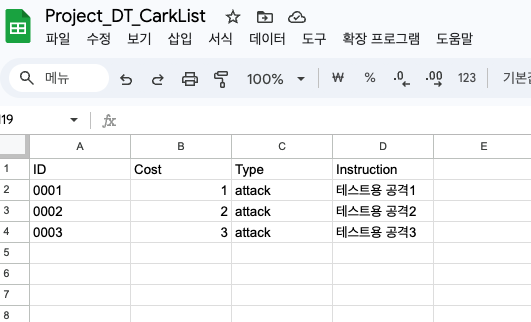
목표 = 해당 구글 시트의 공유 주소를 유니티에서 받아와서 .csv파일로 파싱해서 저장하기
해당 기능은 상단 바에 editor 수정으로 원클릭 작동이 가능하게 하려 한다
using UnityEngine;

public class GoogleSheetDataMaker : MonoBehaviour
{

}
빈 cs파일부터 작성한다
    // 스프레드시트 ID (링크의 d/와 /edit 사이)
    private const string SpreadsheetID = "";

    // CSV로 받을 시트 이름
    private static readonly string[] SheetNames = {
        "Card"
    };
    private const string OutputFolder = "Assets/GoogleSheetsCSV";
ID는 구글 스프레드 시트의 공유 기능을 오픈시 유니티에서도 사용할 수 있다
그후 시트 이름, 저장된 경로를 지정해 준다
    [MenuItem("CustomFunc/GoogleSheetParsing")]
    public static void DownloadGoogleSheetToCSV()
    {

    }
그후 상단바 호출을 위한 editor를 사용해 준다

컴파일 후 확인하면 상단에 기능이 추가된 것을 확인할 수 있다
    public static void DownloadGoogleSheetToCSV()
    {
        try
        {

        }
        catch (Exception ecode)
        {
            Debug.LogError("googleSheet parsing false\n" + ecode);
        }
    }
안쪽에서는 try - catch로 에러 핸들링을 해준다
이제 try안쪽을 작성한다
            // find directory, if not exist => mkdir
            if (!Directory.Exists(OutputFolder))
            {
                Directory.CreateDirectory(OutputFolder);
            }
만약 폴더가 존재하지 않을시, 폴더를 생성한다
            for (int i = 0; i < SheetNames.Length; i++)
            {
                string sheet = SheetNames[i];
                string url = BuildURL();
            }
그후 for문에서 url조립을 시작한다
상단에서는 id만 제공했기에, 나머지는 함수를 이용해서 조립 후 string으로 반환하여 가져온다
해당 기능을 전부 try에 넣으면 너무 많은 일을 하게 된다
    private static string BuildURL(string sheetName)
    {
        string encoded = Uri.EscapeDataString(sheetName);
        return $"https://docs.google.com/spreadsheets/d/{SpreadsheetID}/gviz/tq?tqx=out:csv&sheet={encoded}";
    }
하단에서 해당 함수를 통해서 url조립을 시행한다
이때 uni.EscapeDataString을 사용하게 되는데
https://learn.microsoft.com/ko-kr/dotnet/api/system.uri.escapedatastring?view=net-9.0
Uri.EscapeDataString 메서드 (System)
범위를 이스케이프된 표현으로 변환합니다.
learn.microsoft.com
해당 문서의 기능이다
핵심은
"문자열을 이스케이프된 표현으로 변환합니다."
이다
이스케이프 된다 = 원래 의미를 가진 문자를 특정 상황에 안전하게 사용하기 위해서 다른 표현으로 변경해 준다
예를들어 " 5"이런 공백이 있을시 이를 "%5"로 변경해 준다
/gviz/tq?tqx=out:csv&sheet={encoded}";이렇게 파싱된 시트 이름을 url에 붙여서 조립 후 return하게 된다
                EditorUtility.DisplayProgressBar
                (
                    "GoogleSheet To CSV",
                    $"Downloading : {sheet}",
                    (float)i / Mathf.Max(1, SheetNames.Length)
                );
다시 try로 돌아와 해당 기능이 수행 되는것을 editor기능을 사용하여 프로그래스 바로 보여준다
string csvData = GetCsvData(url);그후 string으로 해당 기능을 가져오도록 함수를 유도한다
    private static string GetCsvData(string url)
    {
        using (UnityWebRequest req = UnityWebRequest.Get(url))
        {
            var op = req.SendWebRequest();

            while (!op.isDone)
            {
                EditorUtility.DisplayProgressBar
                (
                    "Downloading...",
                    url,
                    req.downloadProgress
                );
            }
        }
    }
using을 이용해 webrequest를 사용한다
이때 using을 사용하는 이유는 해당 기능은 외부 자원을 가져온다
메모리 버퍼, 네트워크 소켓 등을 가지고 온다
cs에 GC가 존재해서 어느정도는 해결을 해주지만, 해당 문제는 외부 자원이기에 완벽히 해제를 보장하지는 않는다
이때 idisposable 인터페이스와 내부 자원 정리를 해주는 dispose를 사용한다
이때 using은 블록을 벗어나는 경우 바로 dispose를 호출해주어서 코더가 req.dispose()를 호출하지 않아도 되게 해준다
예외 발생시도 dispose가 호출되기에 누수를 잡을 수 있다
다만 이 루프를 돌리면 CPU를 해당 기능이 먹어버리기 때문에
System.Threading.Thread.Sleep(10);쓰레드 속도를 직접 조절을 해준다
            bool hasError = (req.result != UnityWebRequest.Result.Success);

            if (hasError) throw new Exception($"HTTP = {(int)req.responseCode} = {req.error}\n{url}");
만약 에러 발생시 http 코드로 확인할 수 있도록 핸들링 한다
return req.downloadHandler.text;마지막으로 unitywebrequest가 가져온 데이터를 return한다
                string csvData = GetCsvData(url);
                string path = Path.Combine(OutputFolder, "sheet.csv");
이를 받아서 path.combine으로 조립을 해준다
path Combine은 자신의 운영체제에 맞게 옳바른 문자열 경로를 만들어 준다
                File.WriteAllText(path, csvData, new UTF8Encoding(encoderShouldEmitUTF8Identifier: false));
                Debug.Log($"Save File To = {path}");
이제 이를 System IO로 저장을 해준다
이때 new UTF...는
파일 인코딩 방식을 지정하며 false은 BOM = byte order mark를 쓰지 않겠다는 의미다
즉, false시 순수 utf-8파일이 만들어 진다
AssetDatabase.Refresh();모든 try가 끝나고 한번 파일 리스트를 새로고침을 한다
#if UNITY_EDITOR
using System;
using System.IO;
using System.Text;
using UnityEditor;
using UnityEngine;
using UnityEngine.Networking;

public class GoogleSheetDataMaker : MonoBehaviour
{
    // 스프레드시트 ID (링크의 d/와 /edit 사이)
    private const string SpreadsheetID = "";

    // CSV로 받을 시트 이름
    private static readonly string[] SheetNames = {
        "Card"
    };
    private const string OutputFolder = "Assets/GoogleSheetsCSV";

    [MenuItem("CustomFunc/GoogleSheetParsing")]
    public static void DownloadGoogleSheetToCSV()
    {
        try
        {
            // find directory, if not exist => mkdir
            if (!Directory.Exists(OutputFolder))
            {
                Directory.CreateDirectory(OutputFolder);
            }
            for (int i = 0; i < SheetNames.Length; i++)
            {
                string sheet = SheetNames[i];
                string url = BuildURL(sheet);

                EditorUtility.DisplayProgressBar
                (
                    "GoogleSheet To CSV",
                    $"Downloading : {sheet}",
                    (float)i / Mathf.Max(1, SheetNames.Length)
                );

                string csvData = GetCsvData(url);
                string path = Path.Combine(OutputFolder, $"{sheet}.csv");

                File.WriteAllText(path, csvData, new UTF8Encoding(encoderShouldEmitUTF8Identifier: false));
                Debug.Log($"Save File To = {path}");
            }
        }
        catch (Exception ecode)
        {
            Debug.LogError("googleSheet parsing false\n" + ecode);
        }

        AssetDatabase.Refresh();
    }

    // url 조립 함수
    private static string BuildURL(string sheetName)
    {
        string encoded = Uri.EscapeDataString(sheetName);
        return $"https://docs.google.com/spreadsheets/d/{SpreadsheetID}/gviz/tq?tqx=out:csv&sheet={encoded}";
    }

    private static string GetCsvData(string url)
    {
        using (UnityWebRequest req = UnityWebRequest.Get(url))
        {
            var op = req.SendWebRequest();

            while (!op.isDone)
            {
                EditorUtility.DisplayProgressBar
                (
                    "Downloading...",
                    url,
                    req.downloadProgress
                );
                System.Threading.Thread.Sleep(10);
            }
            bool hasError = (req.result != UnityWebRequest.Result.Success);

            if (hasError) throw new Exception($"HTTP = {(int)req.responseCode} = {req.error}\n{url}");

            return req.downloadHandler.text;
        }
    }
}
#endif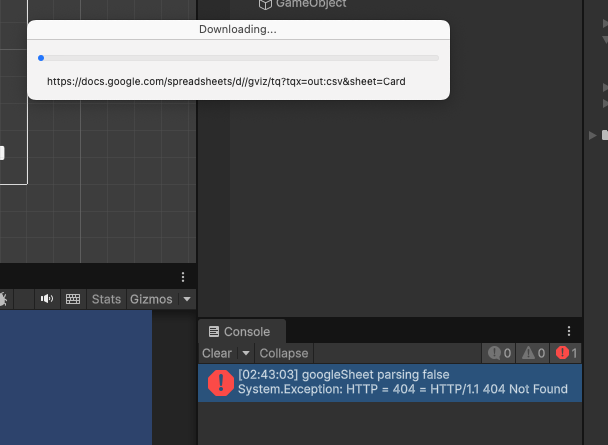
실수로 id를 비우고 실행하니...
무한의 로딩이 걸린다
        finally
        {
            EditorUtility.ClearProgressBar();
        }
무조건 마지막에 도달시 정리를 하도록 강제한다
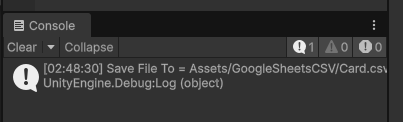
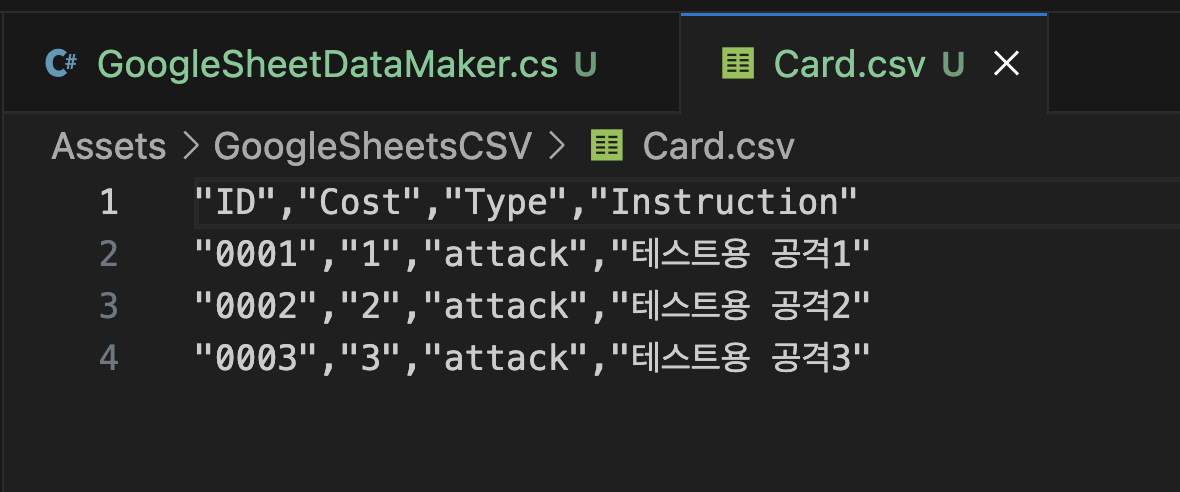
잘 들어오는 것을 확인할 수 있다
'개발일지 > 게임개발' 카테고리의 다른 글
| Project_DT - 플레이어 드로우 기능 (0) | 2025.09.23 |
|---|---|
| Project_DT - 덱 기능 설계, 구현 (0) | 2025.09.23 |
| Project_DT - 턴제 전투, 적 상태 구현 (0) | 2025.09.18 |
| Project_DT - 적 공격 상태 수정(유한 상태 기계) / 실패 (0) | 2025.09.18 |
| Project DT - 적 공격 구현 (0) | 2025.09.10 |
