즐거운 라비닝을 들으며 개발하는 무언가
현재 덱빌딩 게임을 기획하고 있는데, 그중 카드를 끌어서 원하는 목표에 움직일시 위치를 시각적으로 보여주어야 하기에 그때 사용되는 기능이다

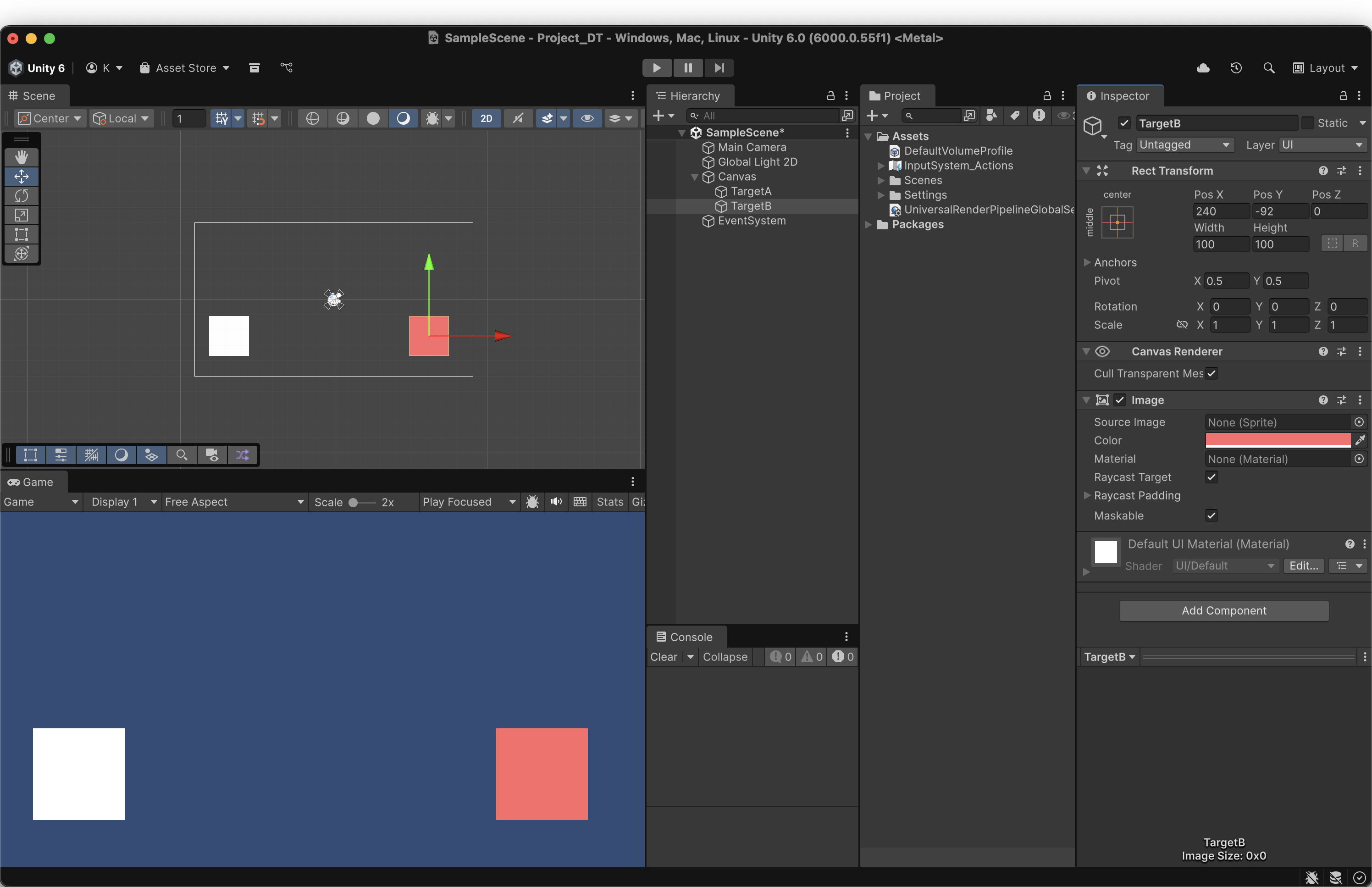
현재 UI image가 2개가 있다
흰색 ui를 마우스로 드래그시, 마우스 끝을 따라다니게 하고 싶다
핵심은 베지에 곡선을 사용하는 것이다
베지에 곡선
Bézier curve 프랑스의 공학자 르노 의 엔지니어이기도 했다. 피에르 베지에(Pierre Bézier)의
namu.wiki
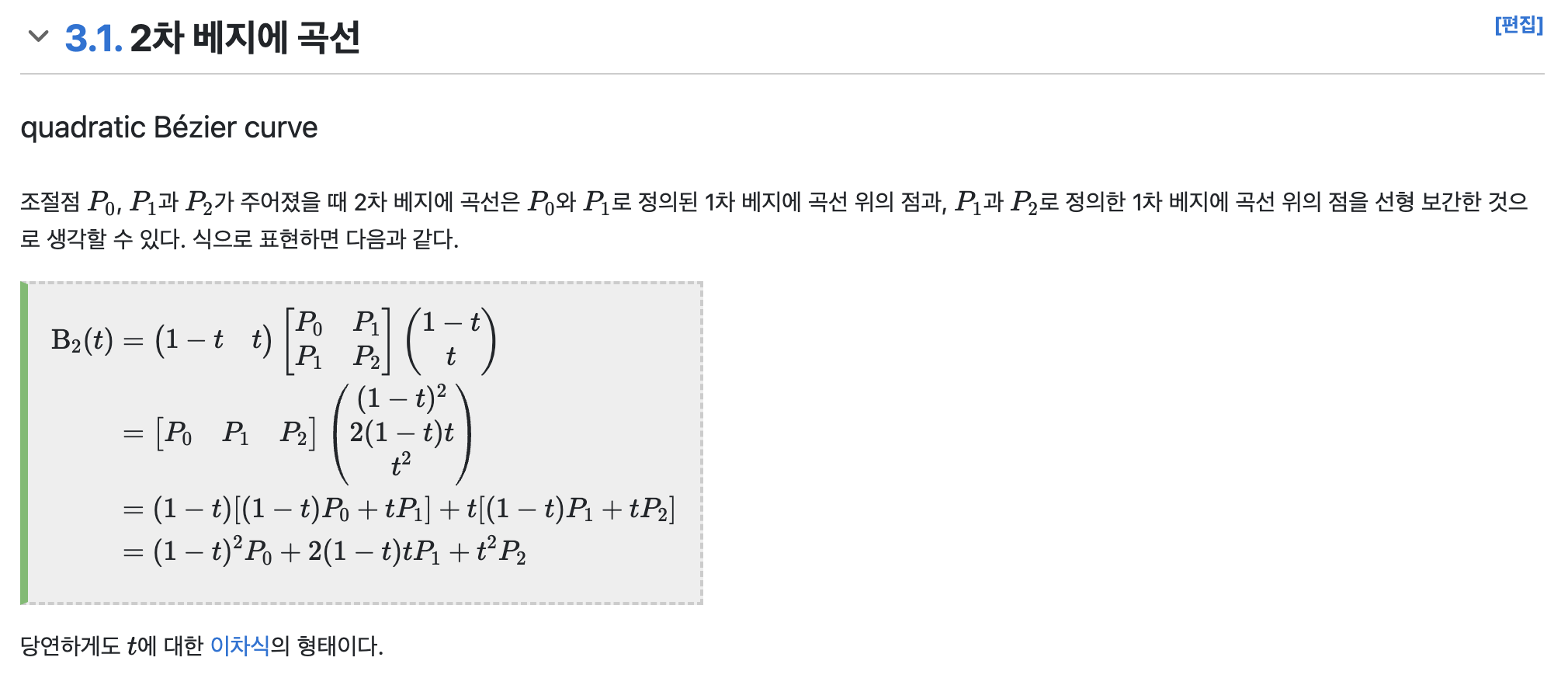
핵심은 해당 식을 코드로 풀어내는 것이다
참고 사이트
Reddit의 Sanketpanda 님 프로필
Sanketpanda 님의 프로필에서 이 게시물을 비롯한 다양한 콘텐츠를 살펴보세요
www.reddit.com
using System.Collections.Generic;
using UnityEngine;

public class CardArrowLineMaker : MonoBehaviour
{
    private Transform[] _targets = new Transform[2];
    private LineRenderer _arrowLine;

    // min line count
    [Min(8)]
    public int LineCount = 8;

    void Start()
    {
        _arrowLine = GetComponent<LineRenderer>();
    }
    void Update()
    {
        var pointList = new List<Vector3>();
        Vector3 middlePoint = Vector3.Lerp(_targets[0].position, _targets[1].position, 0.5f);

        for (int i = 0; i < LineCount; i++)
        {

        }
    }
}
대충 목표들을 넣는 위치 2개를 List에 넣어준 뒤, 그 사잇점을 Lerp로 계산해서 넣어준다
여기에 y값을 높여서 곡선을 구현하면 되는데, 단순하게 y만 높이기에는 고정적이라 비례식을 넣어주는게 좋다고 생각한다
대충 생각하면
중간점 거리 ∝ 점 0, 1의 거리
로 계산하면 될 것 같다
using System.Collections.Generic;
using Microsoft.Unity.VisualStudio.Editor;
using UnityEngine;

public class CardArrowLineMaker : MonoBehaviour
{
    [SerializeField]
    private Transform[] _targets = new Transform[2];
    private LineRenderer _arrowLine;


    [SerializeField]
    private Transform test;

    // min line count
    // [Min(8)]
    // public int LineCount = 8;

    void Start()
    {
        _arrowLine = GetComponent<LineRenderer>();
    }
    void Update()
    {
        Vector3 middlePoint;
        middlePoint = Vector3.Lerp(_targets[0].position, _targets[1].position, 0.5f);
        middlePoint.y += Vector3.Distance(_targets[0].position, _targets[1].position);

        test.position = middlePoint;
    }
}
거리값을 계산 후 y값을 올려준다
동영상 서비스가 종료되어 해당 콘텐츠를 재생할 수 없습니다.
뭔가 비례해서 움직이는것은 확인할 수 있으나, 위치값이 안정적이지 않고 튀는것을 확인할 수 있다
        Vector3 middlePoint;
        middlePoint = Vector3.Lerp(_targets[0].position, _targets[1].position, 0.5f);
        float Lift = Mathf.Max(Vector3.Distance(_targets[0].position, _targets[1].position) * 0.2f, _targets[1].position.y);

        middlePoint.y += Lift;
        test.position = middlePoint;
수식에 Max, 상수값을 넣어서 좀 더 안정화를 시켜준다
동영상 서비스가 종료되어 해당 콘텐츠를 재생할 수 없습니다.
좀 더 안정화가 된 모습을 확인할 수 있다
        var pointList = new List<Vector3>();
        float step = 1f / (LineCount - 1);
        for (float t = 0; t <= 1f; t += step)
        {
            Vector3 tangent1 = Vector3.Lerp(_targets[0].position, middlePoint, t);
            Vector3 tangent2 = Vector3.Lerp(middlePoint, _targets[1].position, t);
            Vector3 curve = Vector3.Lerp(tangent1, tangent2, t);

            pointList.Add(curve);
        }

        _arrowLine.positionCount = pointList.Count;
        _arrowLine.SetPositions(pointList.ToArray());
여기에 LineRenderer와 베지에 공식을 활용하여 곡선을 그려준다
핵심은 시작점 - 중간 보간점, 중간 보간점 - 끝점 에서 2개의 점을 일정 비율로 구해준 뒤
이 2점을 다시 보간한 뒤, 이를 n번 반복후 이 모든 점을 이어주면 곡선이 된다
이제 여기에 마우스 드래그 기능을 넣어주면 된다
        if (Input.GetMouseButtonDown(0) && IsPointerOverUI("Card"))
        {
            _isDragging = true;
        }
        if (_isDragging && Input.GetMouseButton(0))
        {
            Vector3 mousePos = Input.mousePosition;
            Vector3 worldPos;
            RectTransformUtility.ScreenPointToWorldPointInRectangle(
                _targets[1].GetComponent<RectTransform>(),
                mousePos,
                Camera.main,
                out worldPos
            );

            _targets[1].position = worldPos;
        }
        else
        {
            _targets[1].position = _targets[0].position;
        }


        if (Input.GetMouseButtonUp(0))
        {
            _isDragging = false;
        }
input으로 마우스의 클릭을 감지고하고
만약 카드를 클릭한 상태에서 클릭을 유지할 시 드래그를 하고 있음을 인식한다
그후 마우스의 위치값을 월드 기준으로 가져온 뒤, 이를 _target[1]의 위치에 반영한다(이건 끝에 화살표를 붙이기 위한 작업이니 무시해도 된다)
만약 클릭을 땔시 다시 위치를 초기화 해준다
using System.Collections.Generic;
using UnityEngine;
using UnityEngine.EventSystems;

public class CardArrowLineMaker : MonoBehaviour
{
    [SerializeField]
    private Transform[] _targets = new Transform[2];
    private Vector3 _middlePoint;
    private LineRenderer _arrowLine;

    [SerializeField]
    private float _liftFactor = 0.2f;

    // min line count
    [Min(8)]
    public int LineCount = 8;


    private bool _isDragging = false;

    void Start()
    {
        _arrowLine = GetComponent<LineRenderer>();
    }
    void Update()
    {
        if (Input.GetMouseButtonDown(0) && IsPointerOverUI("Card"))
        {
            _isDragging = true;
        }
        if (Input.GetMouseButtonUp(0))
        {
            _isDragging = false;
        }
        UpdateArrowEndPoint();
        _middlePoint = CalculateMiddlePointVertex();
        DrawLine();
    }

    private void UpdateArrowEndPoint()
    {
        if (_isDragging && Input.GetMouseButton(0))
        {
            Vector3 mousePos = Input.mousePosition;
            Vector3 worldPos;
            RectTransformUtility.ScreenPointToWorldPointInRectangle(
                _targets[1].GetComponent<RectTransform>(),
                mousePos,
                Camera.main,
                out worldPos
            );

            _targets[1].position = worldPos;
        }
        else
        {
            _targets[1].position = _targets[0].position;
        }
    }
    private Vector3 CalculateMiddlePointVertex()
    {
        _middlePoint = Vector3.Lerp(_targets[0].position, _targets[1].position, 0.5f);
        float Lift = Mathf.Max(Vector3.Distance(_targets[0].position, _targets[1].position) * _liftFactor, _targets[1].position.y);

        _middlePoint.y += Lift;

        return _middlePoint;
    }
    private void DrawLine()
    {
        var pointList = new List<Vector3>();
        float step = 1f / (LineCount - 1);
        for (float t = 0; t <= 1f; t += step)
        {
            Vector3 tangent1 = Vector3.Lerp(_targets[0].position, _middlePoint, t);
            Vector3 tangent2 = Vector3.Lerp(_middlePoint, _targets[1].position, t);
            Vector3 curve = Vector3.Lerp(tangent1, tangent2, t);

            pointList.Add(curve);
        }

        _arrowLine.positionCount = pointList.Count;
        _arrowLine.SetPositions(pointList.ToArray());
    }
    private bool IsPointerOverUI(string tag)
    {
        PointerEventData pointerData = new PointerEventData(EventSystem.current);
        pointerData.position = Input.mousePosition;

        List<RaycastResult> results = new List<RaycastResult>();
        EventSystem.current.RaycastAll(pointerData, results);

        foreach (RaycastResult result in results)
        {
            if (result.gameObject.CompareTag(tag))
                return true;
        }

        return false;
    }
}
이를 한번 캡슐화 해주면 이하의 형태가 된다
private readonly List<Vector3> _points = new List<Vector3>(64);

private Vector3[] _positionsBuffer;

private void DrawLine()
{
    _points.Clear();
    float step = 1f / (LineCount - 1);
    for (float t = 0; t <= 1f; t += step)
    {
        Vector3 tangent1 = Vector3.Lerp(_targets[0].position, _middlePoint, t);
        Vector3 tangent2 = Vector3.Lerp(_middlePoint, _targets[1].position, t);
        Vector3 curve = Vector3.Lerp(tangent1, tangent2, t);

        _points.Add(curve);
    }

    _points.CopyTo(_positionsBuffer);

    _arrowLine.positionCount = _points.Count;
    _arrowLine.SetPositions(_positionsBuffer);
}
추가적으로 계속해서 생성하던 new list를 필드로 만들어 계속 생성 하는것을 막아주고
toarray로 생성되던 list도 직접 버퍼로 관리해준다
동영상 서비스가 종료되어 해당 콘텐츠를 재생할 수 없습니다.
잘 작동하는 것을 확인할 수 있다
GitHub - NoNamed02/Project_DT
Contribute to NoNamed02/Project_DT development by creating an account on GitHub.
github.com
'개발일지 > 게임개발' 카테고리의 다른 글
| Project DT - 턴 시스템 구현하기 (1) | 2025.09.06 |
|---|---|
| 유니티 3D - 방입장 카메라 무빙 구현 (3) | 2025.08.28 |
| Unity 게임 개발 - 세이브 기능 (0) | 2025.05.05 |
| 유니티 Talk BackLogBar 개발 (0) | 2025.04.29 |
| Unity effect maker 제작 (0) | 2025.04.29 |


